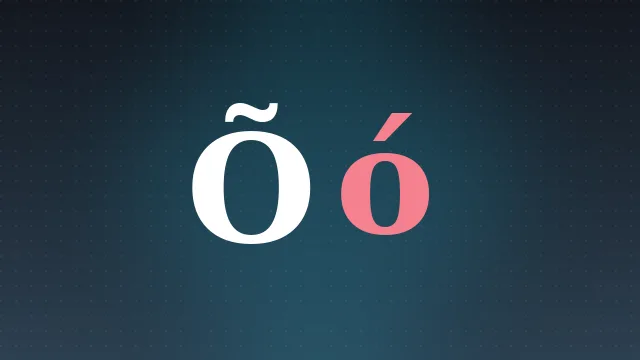
Copying an accented O sounds like it should be trivial, and most of the time it is. But every so often the character arrives at its destination as a plain O, an empty box or a pair of garbled symbols. This guide explains how copy and paste actually moves an accented character, and how to make sure the mark survives the trip every time.
How Copy And Paste Moves A Character
When you copy text, your device places the underlying character codes on the clipboard, not a picture of the letters. An accented O like Ó is stored as its Unicode code point, U+00D3. Pasting hands that code to the destination, which then looks up a glyph in whatever font it uses. If everything speaks the same encoding, the mark appears exactly as you copied it.
Problems only creep in when one link in the chain assumes a different encoding, or when the destination font has no glyph for that code point. Understanding those two failure points is most of the battle.
The Reliable Way To Copy
The safest source is a tool that outputs real Unicode, which is exactly what the finder on this site does. Tap the Copy button on any character and it goes straight to your clipboard as a proper code point. From there, paste with Ctrl+V on Windows, Cmd+V on a Mac, or a long press and Paste on a phone.
A quick test: paste the character into a plain text note first. If it looks right there, the copy worked and any later problem is on the destination side.
Copying From A Web Page
Selecting an accented O in a browser and copying it usually works, but selection can pick up hidden formatting. If a paste brings unexpected fonts or colours with it, use Paste as plain text, often Ctrl+Shift+V, to strip everything except the characters.
When The Mark Disappears
If the accent vanishes and you are left with a bare O, the destination most likely ran the text through an accent stripping filter, which some older forms and usernames do on purpose. There is no fix on your side beyond choosing a field that accepts full Unicode.
If instead you see a box or a question mark, the character survived but the font cannot draw it. Switching the destination to a font with full Latin coverage, such as most system defaults, brings it back. Our troubleshooting guide covers this case in detail.
The Mojibake Case
Occasionally an accented O turns into two odd characters, a classic sign of an encoding mismatch known as mojibake. This happens when text saved as UTF-8 is read as a legacy encoding. Saving and opening files as UTF-8 throughout the pipeline prevents it.
Copying On A Phone
Phones handle Unicode well, so copying from the tool and long pressing to paste works in almost every app. The favourites shelf is especially useful here: star the characters you use most and they stay one tap away, which saves searching on a small screen. The phone guide also shows how to type accents directly with a long press.
In Summary
Copy and paste moves character codes, not pictures, so an accented O will travel intact as long as the source outputs real Unicode and the destination accepts and can draw it. Copy from a Unicode aware tool, paste as plain text when formatting gets in the way, and keep everything in UTF-8. Do that and the mark stays put.