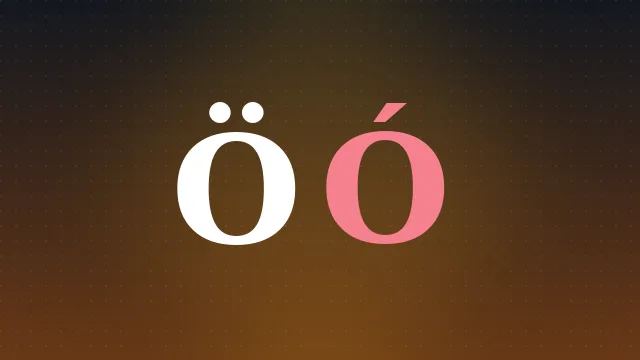
Windows offers more ways to type an accented O than most people realise, from the classic Alt codes to a modern touch keyboard and an emoji panel. This guide walks through each method so you can pick the one that suits how often you need characters like Ó, Ô, Ö and Ø.
Alt Codes
The traditional method is the Alt code. Hold the Alt key, type a number on the numeric keypad with Num Lock on, and release. The common O accents are Alt 0211 for Ó, Alt 0212 for Ô, Alt 0213 for Õ, Alt 0214 for Ö and Alt 0216 for Ø, with the lowercase versions higher in the range. The leading zero matters and the top row numbers do not work, only the keypad.
Alt codes are fast once memorised but awkward on laptops without a keypad. Our dedicated Alt code guide lists every number and covers the keypad workarounds.
The Touch Keyboard
Windows includes an on screen touch keyboard that handles accents the way a phone does. Enable it from the taskbar, then press and hold the O key with a mouse or finger to reveal a menu of accented variants. This is the easiest visual method and needs no codes at all.
The touch keyboard is the quiet hero for laptop users. It brings the phone style long press to the desktop and sidesteps the missing numeric keypad entirely.
The Emoji And Symbol Panel
Pressing the Windows key together with the full stop opens the emoji panel, which also has a symbols tab. From there you can browse Latin symbols and insert accented characters. It is handy when you cannot recall a code and want to pick the character by eye.
The US International Layout
If you type accents regularly, the US International keyboard layout is the best long term choice. Add it in the language settings and the punctuation keys become dead keys: press the apostrophe then O for ó, the tilde key then O for õ, and the quotation key then O for ö. It keeps the familiar layout while making accents a two key press.
The Hexadecimal Method
In applications that support it, such as Word, you can type a character's hexadecimal code point and press Alt and X to convert it. Type 00D6 then Alt and X to get Ö. This reaches any Unicode character, including ones without an Alt code like the macron Ō.
When To Just Copy
For a character you need only once, none of the above is worth the effort. Open the finder, search for the accent, and copy it in a tap. Star your regulars on the favourites shelf and they stay ready across visits.
In Summary
On Windows you can type an accented O with Alt codes such as Alt 0211 for Ó, the touch keyboard's long press, the emoji and symbol panel, or the US International layout for daily use. Reach for the hexadecimal method for rare characters, and copy from the tool when you only need one.